

Every January hits the same. New year energy kicks in, I get that productivity rush, and suddenly I'm downloading every app that promises to "transform my workflow." Most of them? Gone by February. Deleted after the free trial ends or sitting in my Applications folder collecting dust.
But some apps stick. They become so embedded in how I work that trying to function without them feels wrong. Like muscle memory, but for software.
This year, I figured I'd skip the usual "top 10 productivity apps" listicle and just share what actually works. Some of these I found recently and can't believe I lived without. Others have been riding with me for years. A few I built myself because nothing else solved the problem right.
If you're a Mac user looking to actually get more done (not just feel productive while reorganizing your dock for the third time this week), here's what's worth your time.
My Favorite Productivity Apps for Mac
| Tool | Best For | Pricing |
|---|---|---|
| Char | AI note-taker with complete control over data and AI stack | Free, Pro $8/mo |
| Cowork | AI agent that handles tedious file work and research | Claude Pro/Team/Enterprise required |
| Raycast | Replacing Spotlight with a command center that actually does things | Free, Pro $10/mo |
| Obsidian | Building a personal knowledge base with files you actually own | Free, Sync $8/mo |
| Things 3 | Task management that's beautiful enough to actually open daily | $50 Mac, $10 iPhone (one-time) |
| CleanShot X | Screenshots and screen recordings for people who share a lot of visuals | $29 one-time, Pro $8/mo |
| Keyboard Maestro | Automating repetitive tasks you do every single day | $36 one-time |
| Hazel | File organization that runs on autopilot forever | $42 one-time |
| Reeder | Following blogs and content without algorithmic feeds | $10/year |
Best Mac Productivity Apps in 2026
1. Char (formerly Hyprnote): Best Mac App for Meeting Notes
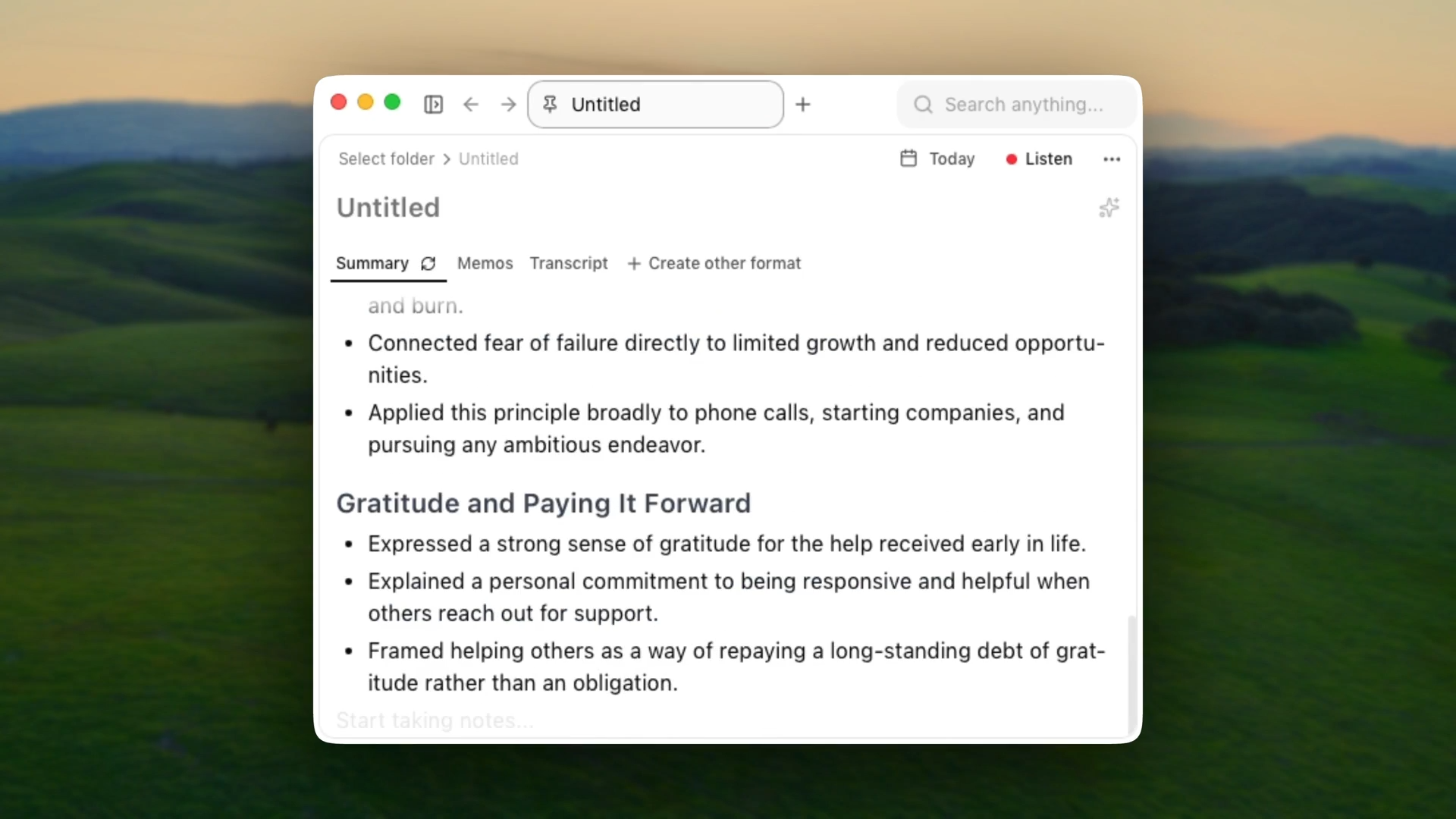
Meetings suck, but they're inevitable. The next best thing is making sure you never miss a detail with a note-taker that doesn't lock your data in someone else's cloud. That's why I built Char.
Char is an open-source AI note-taker that stores your data locally and gives you complete control over the AI stack.
You decide if your audio, transcripts, or notes ever leave your device. And, you pick your preferred STT and LLM provider, which means you can go completely local if you want to. No forced stack. No lock-in.
Key Features:
- System audio capture: No bots; works on Zoom, Teams, phone calls, and in-person
- Real-time transcription: See what's being said as the meeting happens
- AI summaries: Combines your notes + transcript to generate summaries with action items
- Files over apps: Every meeting is a .md file you fully own
- Flexible AI stack: Use managed cloud, bring your own API key (Cloud or local)
- Custom templates: Structure recurring meetings automatically
- Searchable: Semantic search across all meetings with date filters
- 45+ languages: Including English, Spanish, French, German, Japanese, Mandarin
- Open source: Code is public, auditable by IT/security teams
Pros:
- You actually own your data. The files stay on your device
- No internet required with local models
- No lock-in. You can switch AI providers anytime
- More discreet than bot-based note-takers
- Security teams can audit the code before approving
- Works for any conversation (not just video calls)
- Integrates seamlessly into existing markdown workflows
Cons:
- macOS and Linux only (Windows version coming soon)
- No video recordings
- No mobile app yet
Pricing:
Unlimited free plan with local transcription or bring-your-own-key. Pro is $8/month for managed cloud service.
2. Cowork: Best AI Agent for File Management and Research on Mac
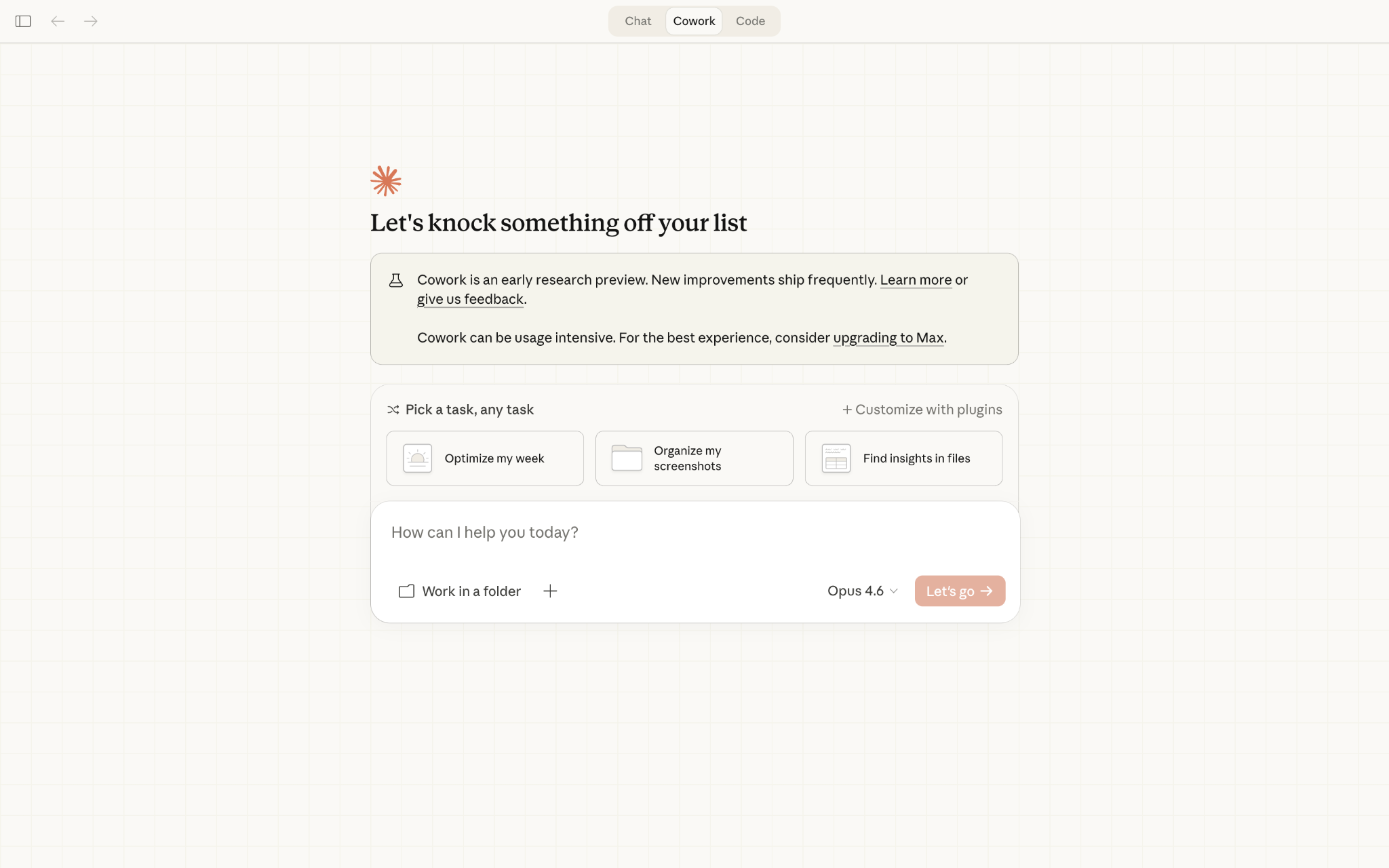
Think of Cowork as Claude Code's friendlier cousin, built for people who don't want to touch a terminal but still want an AI that can handle multi-step tasks across their actual files and folders.
Key Features:
- Local file access: Give Claude permission to specific folders and it'll read, edit, organize, and create files without you manually uploading anything
- Multi-step task execution: Set it loose on a project and it'll work through multiple steps autonomously, checking in when it needs guidance
- Built-in skills: Comes with pre-loaded expertise for creating presentations, spreadsheets, and documents with proper formatting
- Works with your connectors: Integrates with MCP servers you already have set up (like Google Drive, Slack)
- Task queueing: Drop multiple requests and let Claude work through them in parallel—feels less like a conversation, more like delegating to a coworker
Pros:
- Actually handles tedious work you'd normally grind through for hours (organizing downloads, processing receipts, restructuring notes)
- No bot joining your Zoom calls or needing calendar permissions
- Works seamlessly with tools like Obsidian, Notion, VS Code since everything's just files
- Can handle complex workflows like "find all my unpublished blog drafts that are almost done"
Cons:
- Burns through your usage limits fast
- Still in research preview, so you'll run into bugs
- Security concerns around prompt injection aren't fully solved yet
- Requires explicit folder permissions, which can feel limiting if you want it to work across your whole system
- Can potentially delete files if it misunderstands instructions (that YOLO mode is real)
Pricing:
Available to paid subscribers, with pricing starting at $17/month for Pro users, or via higher-tier Max plans ($100–$200/month) for increased usage capacity.
3. Raycast: Best Spotlight Replacement for Mac Power Users
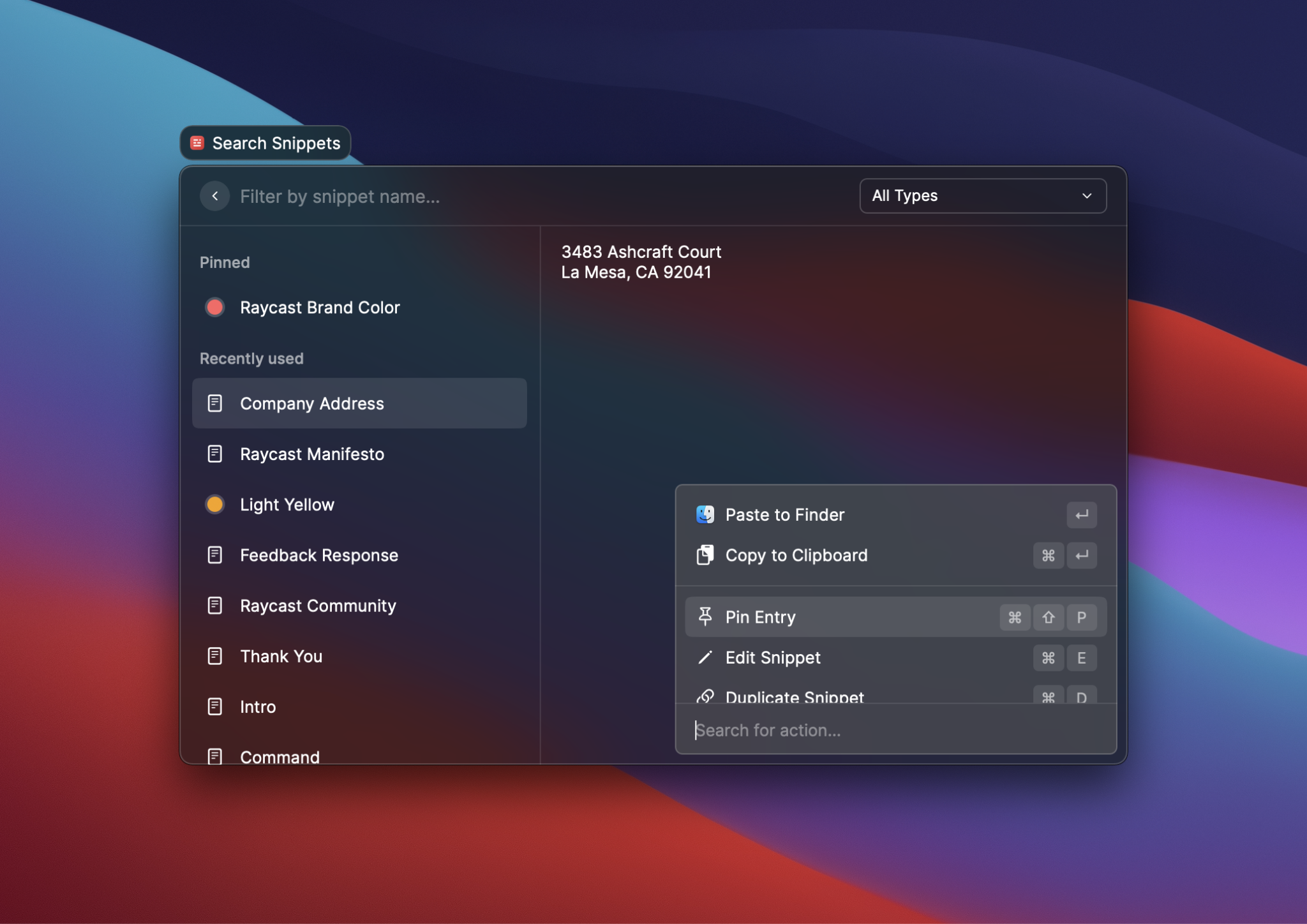
Raycast is basically Spotlight done right. Need to paste something from ten minutes ago? It's there. Want to tile a window left without touching your trackpad? Done. Converting 50 GBP to USD? Type it. Most of this you can technically do elsewhere, but Raycast puts it behind one hotkey.
Key Features:
- Spotlight on steroids: Launch apps, search files, do calculations, convert currencies, faster
- Clipboard history: Never lose something you copied three pastes ago; search through everything with a keystroke
- Window management: Snap windows into place without needing Rectangle or Magnet
- 1,000+ extensions: Control Spotify, manage Linear issues, search Notion, check your calendar without opening any of them
- Snippets & quicklinks: Type shortcuts that expand into full text blocks or URLs instantly
- AI integration: Access ChatGPT, Claude, and other AI models right from your command bar
- Custom scripts: Run shell commands and automate workflows directly from Raycast
Pros:
- Genuinely fast; no lag between typing and results appearing
- Free tier is incredibly generous; most people never need Pro
- Extensions are easy to install and actually useful (not bloatware)
- Can map any action to a global hotkey that works system-wide
- Active development with constant updates and new features
- Clean, modern interface that doesn't feel cluttered despite doing so much
- Works seamlessly across macOS versions
Cons:
- Some extensions can be hit-or-miss in quality
- Pro subscription feels overpriced for what's essentially AI access
- Takes time to build muscle memory and really leverage all features
Pricing:
Free forever for core features. Raycast Pro is $10/month for AI features, unlimited clipboard history, and cloud sync. Pro + Advanced AI is $20/month for premium AI models. Team plans start at $15/user/month.
4. Obsidian: Best PKM App for Mac
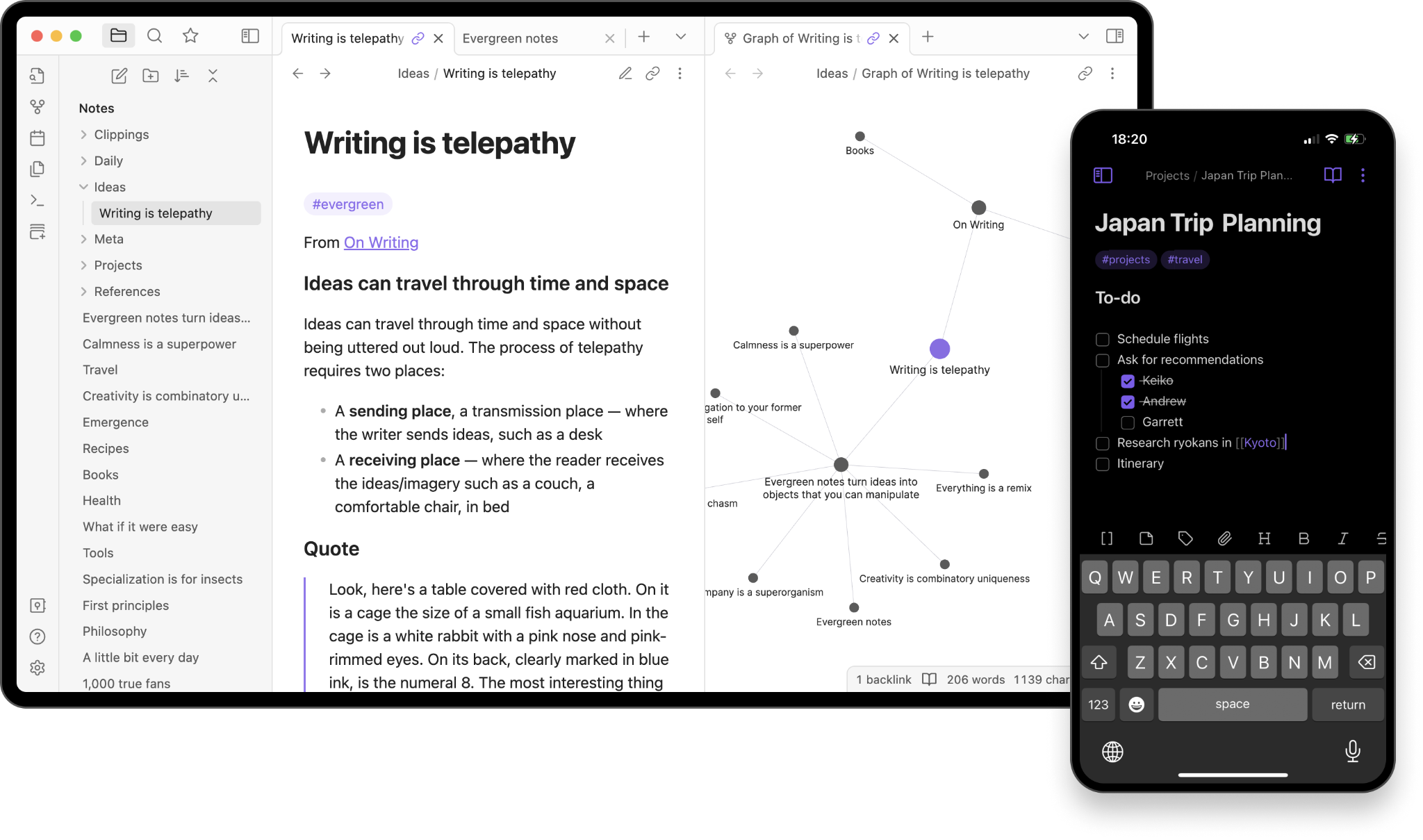
I've been an Obsidian power user for as long as I can remember, and it won't come as a surprise that I am greatly inspired by their files over apps philosophy.
Started using it to link random thoughts together and soon got deep enough to build my own plugins.
That's what Obsidian does you know. When everything's just markdown files on your computer and you can extend it however you want, you stop seeing it as an app and start seeing it as your system. That sense of ownership changes how you work.
Key Features:
- Wiki-style links: Connect notes by typing [[note name]]. It helps you build a web of related ideas
- Graph view: Visual map of how all your notes connect (looks cool, rarely useful in practice)
- Local markdown files: Everything stored as .md files you fully control and can open anywhere
- 1,000+ community plugins: Extend functionality with everything from task management to chart generation
- Canvas mode: Infinite whiteboard for brainstorming and laying out ideas visually
- Custom themes and CSS: Make it look however you want (if you're willing to tinker)
- Daily notes: Built-in journaling system with templates
- No internet required: Works completely offline
Pros:
- Your data is actually yours
- Works with any sync service (iCloud, Dropbox, Google Drive) or use Obsidian Sync
- Free for personal use with no feature restrictions
- Pairs perfectly with markdown-based tools like Char
- Active community constantly building new plugins and themes
Cons:
- Steep learning curve if you want to do anything beyond basic notes
- Can become a productivity procrastination trap (endless tweaking)
- Not visually polished out of the box, requires theme hunting
- File-based organization can get messy fast without discipline (Cowork can help)
- Closed source despite storing files locally
Pricing:
Free for personal use. Obsidian Sync is $10/month for encrypted cloud sync across devices. Commercial use (revenue over $1M/year) requires a $50/user/year license.
5. Things 3: Best Task Manager for Mac Users
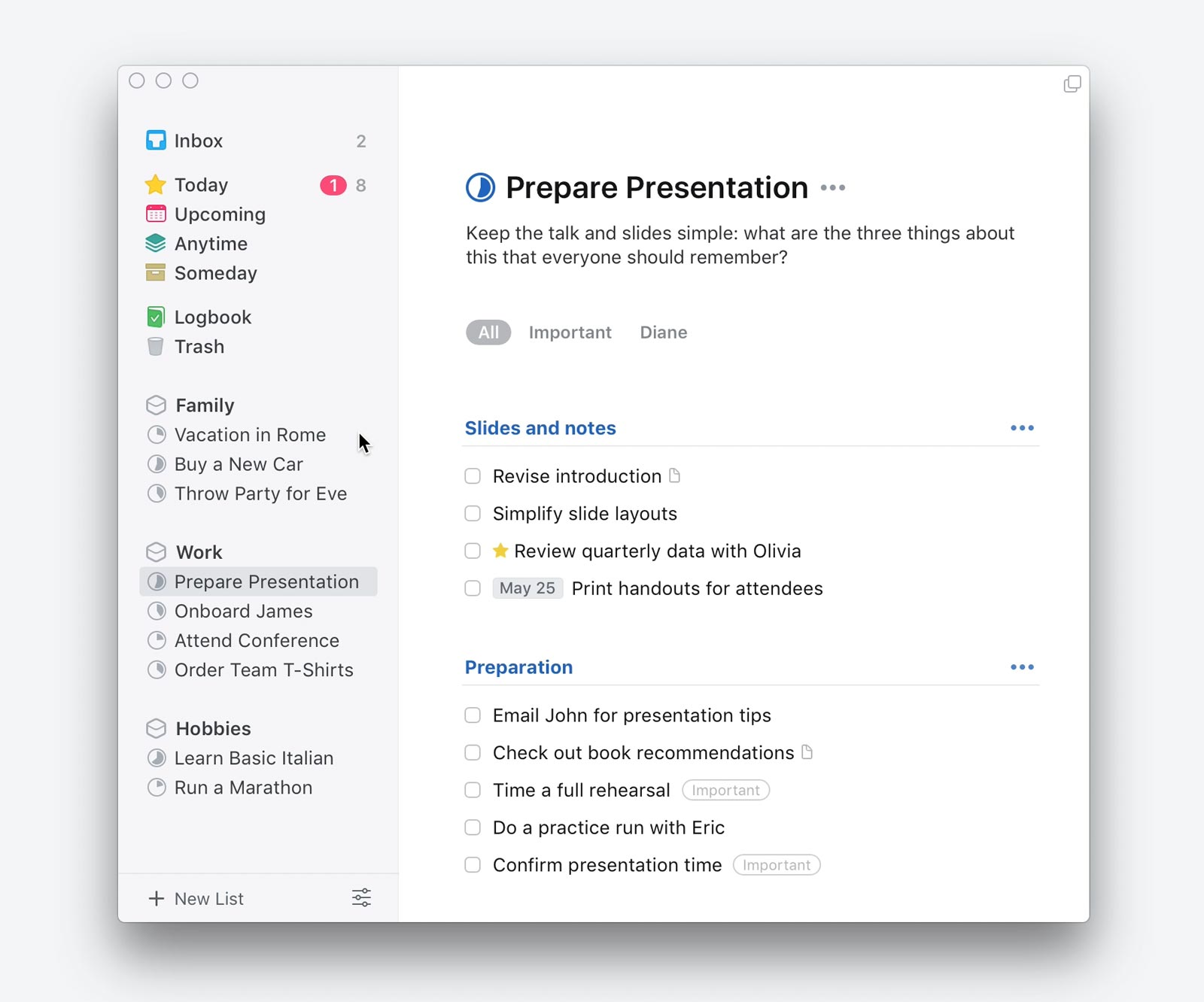
Things 3 is what happens when designers actually care about how software feels. It's not trying to be everything; just a beautiful way to track what you need to do today. Expensive and missing features, but sometimes the best tool is the one you actually want to use.
Key Features:
- Today + This Evening: Smart way to separate daytime tasks from evening ones
- Upcoming view: See your week at a glance with scheduled tasks and deadlines
- Headings: Break projects into sections without creating separate lists
- Quick Entry: CMD+Space to capture tasks from anywhere on Mac
- Calendar integration: See events alongside tasks in your Today view
- Magic Plus button: Drag to insert tasks exactly where you want them (iPad/iPhone)
- Natural dates: Type "tomorrow" or "next Friday" and it just works
- Checklists: Break down tasks without creating full projects
- Apple Watch integration: Quick capture and task viewing on your wrist
Pros:
- Fast and responsive, never lags
- Today view keeps you focused on what matters now
- Works completely offline
- Calendar events show up in your task list
- Apple Shortcuts integration for automation
- Feels calming to use instead of overwhelming
Cons:
- No collaboration features whatsoever
- Expensive ($50 Mac, $10 iPhone, $20 iPad. Separate purchases)
- Missing features power users expect (priorities, smart lists, attachments)
- Development is slow—major updates are years apart
- No natural language input beyond dates (You can look at Todoist for this)
- Can't attach files or images to tasks
Pricing:
One-time purchase @ $49.99. No subscription, no sync fees. Buy once and own it forever. Frequently goes on sale.
6. Cleanshot X: Best Screenshot and Screen Recording Tool for Mac
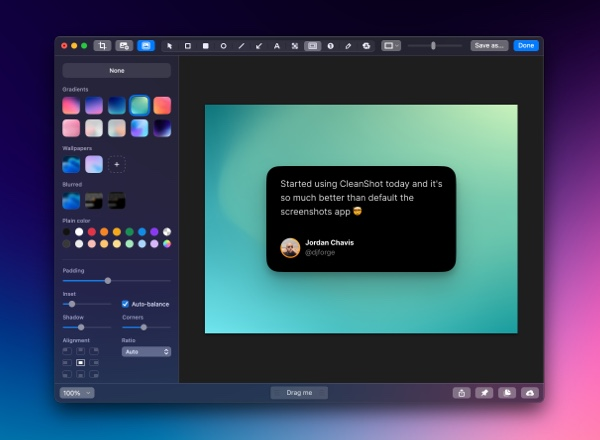
If you work async and live in screenshots and screen recordings, CleanShot X is non-negotiable.
I capture 20-30 things a day explaining designs, reporting bugs, documenting workflows. CleanShot makes the entire flow invisible. You can capture, annotate in seconds, share a link, move on.
The free alternative Shottr exists if you're on a budget, but CleanShot's polish and speed make the $29 feel worth it.
Key Features:
- Scrolling capture: Capture entire web pages or long documents that don't fit on screen
- Pin screenshots: Float captures above all windows for reference while you work
- Quick annotations: Add arrows, text, highlights, and shapes instantly
- Background tool: Automatically add professional backgrounds and shadows to screenshots
- Screen recording: Record video with webcam overlay, microphone, and system audio
- OCR text recognition: Copy text from images on-device, super fast
- Hide desktop icons: Clean screenshots without desktop clutter
- GIF export: Turn screen recordings into optimized GIFs
- Quick Access Overlay: Drag and drop screenshots directly to other apps
- CleanShot Cloud: Share captures via link with optional custom domain and branding
Pros:
- Scrolling capture works in every app
- Pin feature is genuinely useful for keeping references visible
- Quick Access Overlay makes sharing frictionless
- Screen recordings with webcam overlay rival Loom
- OCR is accurate and lightning fast
- Automatic background styling saves manual editing in design tools
Cons:
- One-time purchase only includes one year of updates ($19/year renewal for updates after)
- Quick Access Overlay sometimes blocks the area you need to capture next
- No collaboration features beyond link sharing
Pricing:
$29 one-time for the app with one year of updates and 1GB Cloud storage (optional $19/year renewal).
Pro plan is $8/month annually or $10/month for unlimited Cloud storage, custom domain, team features, and perpetual updates.
7. Keyboard Maestro: Best for Automating Mac workflows
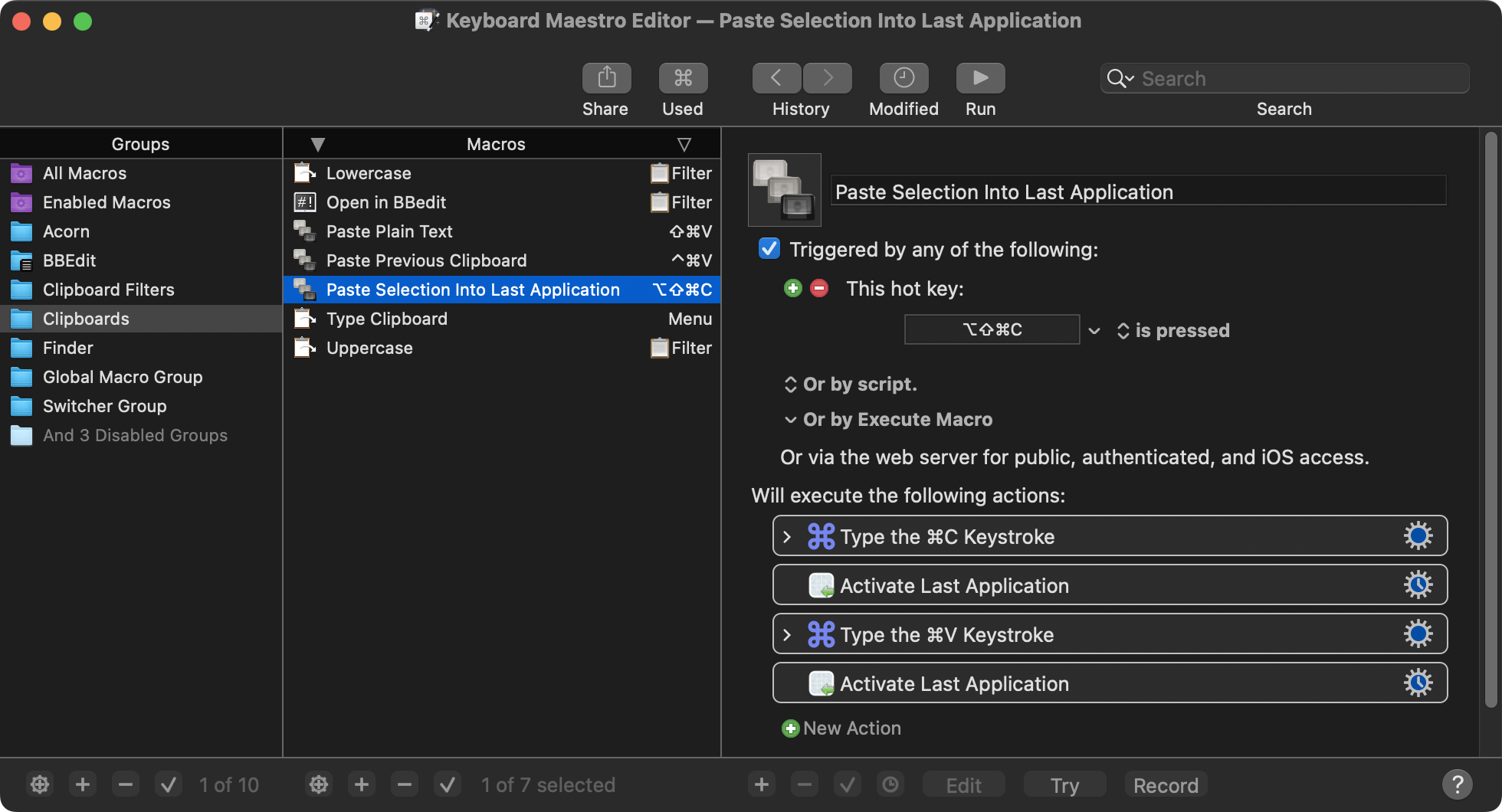
I started using Keyboard Maestro to save a few clicks here and there. Six months in, I'm automating things I didn't know were annoying me. It's not sexy, it's not flashy, but it quietly saves me hours every week by making my Mac work exactly how I want it to.
Key Features:
- Conflict Palettes: Assign multiple macros to one hotkey, get a menu to choose from
- Hundreds of triggers: Time-based, app launch, file changes, login, volume mount, typed strings, and more
- Application control: Launch apps, arrange windows, quit specific programs automatically
- Text manipulation: Expand snippets, transform clipboard content, OCR images
- Web automation: Fill forms, click buttons, download files on schedule
- Clipboard management: Multiple clipboard history with filters
- Window management: Position windows with keyboard shortcuts
- Conditional logic: If/then statements, loops, variables for complex workflows
- URL scheme support: Trigger macros from other apps like Raycast or Alfred
- Schedule actions: Run tasks at specific times or intervals
Pros:
- Active forum community with helpful users
- Stable and reliable, rarely crashes
- Can integrate with other automation tools (Shortcuts, AppleScript, shell scripts)
- Conflict palettes solve the "too many hotkeys to remember" problem
- Macros can be as simple or complex as you need
Cons:
- Requires time investment to figure out what's worth automating
- Documentation is comprehensive but not always beginner-friendly
- You need to maintain your macros as macOS updates change things
- Some tasks better handled by dedicated tools (Hazel for file automation, BTT for gestures)
Pricing:
$36 one-time purchase for version 11. Upgrades to major versions cost $25 (every ~2 years). Free upgrades for purchases after March 1, 2023. Free trial available. No subscription required.
8. Hazel: Best File Organization App for Mac
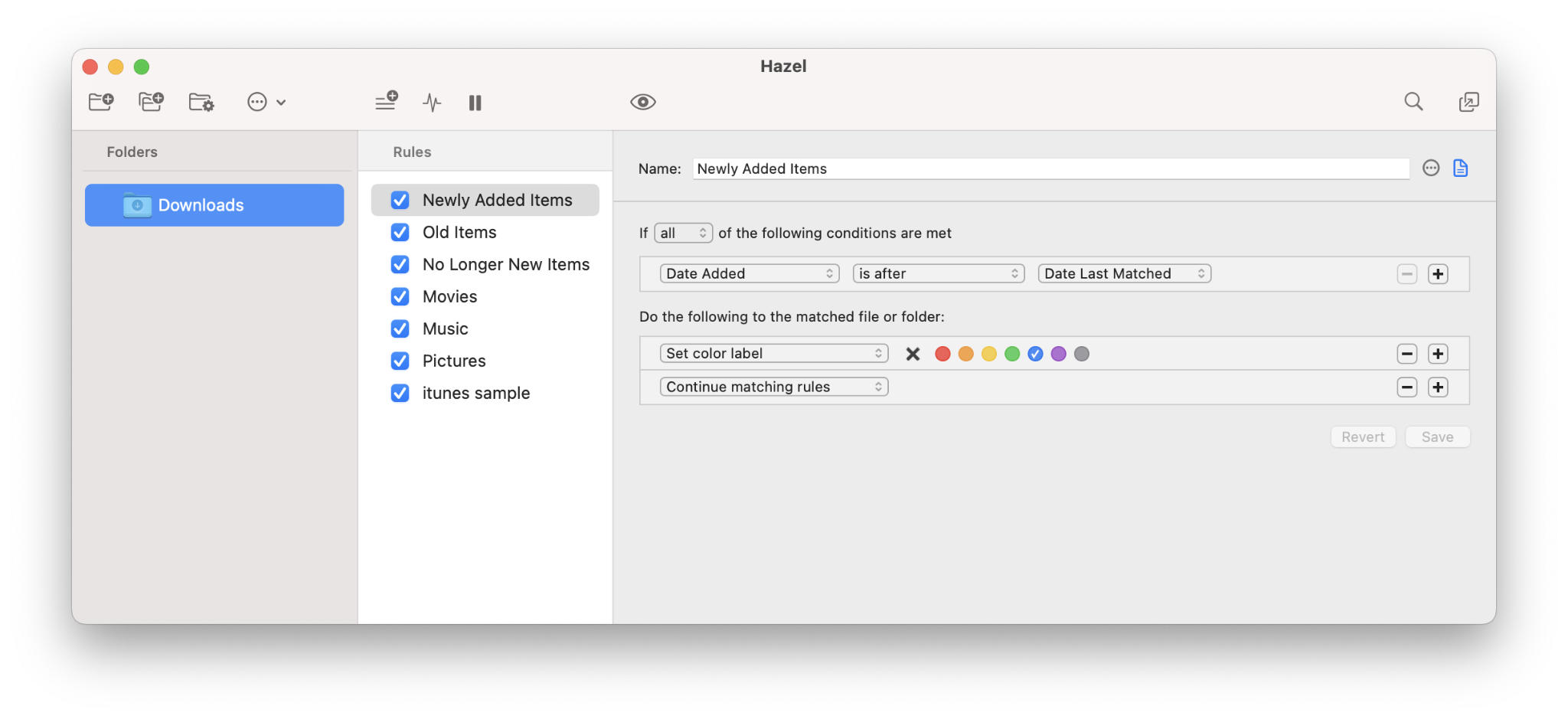
Hazel watches folders and runs rules on autopilot, for example, move PDFs to project folders, delete DMGs after install, archive old screenshots.
Unlike Cowork which uses AI to make decisions, Hazel does exactly what you tell it, forever. Set up rules once, downloads folder stays at zero without thinking.
Keyboard Maestro can watch folders too, but Hazel's built for files specifically like, PDF content reading, App Sweep cleanup, better reliability.
Key Features:
- Rule-based automation: Watch folders and automatically move, rename, tag, or process files based on conditions you set
- PDF content recognition: Read text inside PDFs without OCR to sort bills, invoices, statements by content
- App Sweep: When you delete an app, Hazel finds and offers to delete its leftover support files
- Smart trash management: Auto-delete old trash or clear it when it gets too large
- Pattern matching: Sort files by name patterns, dates, file types, source URLs, and more
- File actions: Open, archive, compress, tag, rename, upload files automatically
- Subfolder organization: Create date-based or name-based folder structures automatically
- Import to Photos/Music: Automatically import media files to system apps
- AppleScript & Shortcuts integration: Run scripts or shortcuts as part of file rules
- Notification support: Get alerts when rules run or conditions are met
Pros:
- Set it and forget it. It runs silently in background for years
- Incredibly reliable, rarely breaks
- Can eliminate entire categories of manual work (DMG cleanup, screenshot archiving, file sorting)
- PDF content reading works without separate OCR setup
- App Sweep finds leftover files other cleaners miss
- Version 6 adds pause functionality for temporary rule suspension
Cons:
- Steep learning curve for complex rules
- Interface feels dated and intimidating at first
- Regex and advanced pattern matching requires technical knowledge
- Easy to create conflicting rules that fight each other
- No built-in AI for smart file categorization (yet)
Pricing:
$42 one-time purchase for Hazel 6. Major version upgrades typically cost ~$30 for existing users. Free trial available. No subscription required. License covers all your Macs with the same Apple ID.
9. Reeder: Best RSS Reader for Mac Users
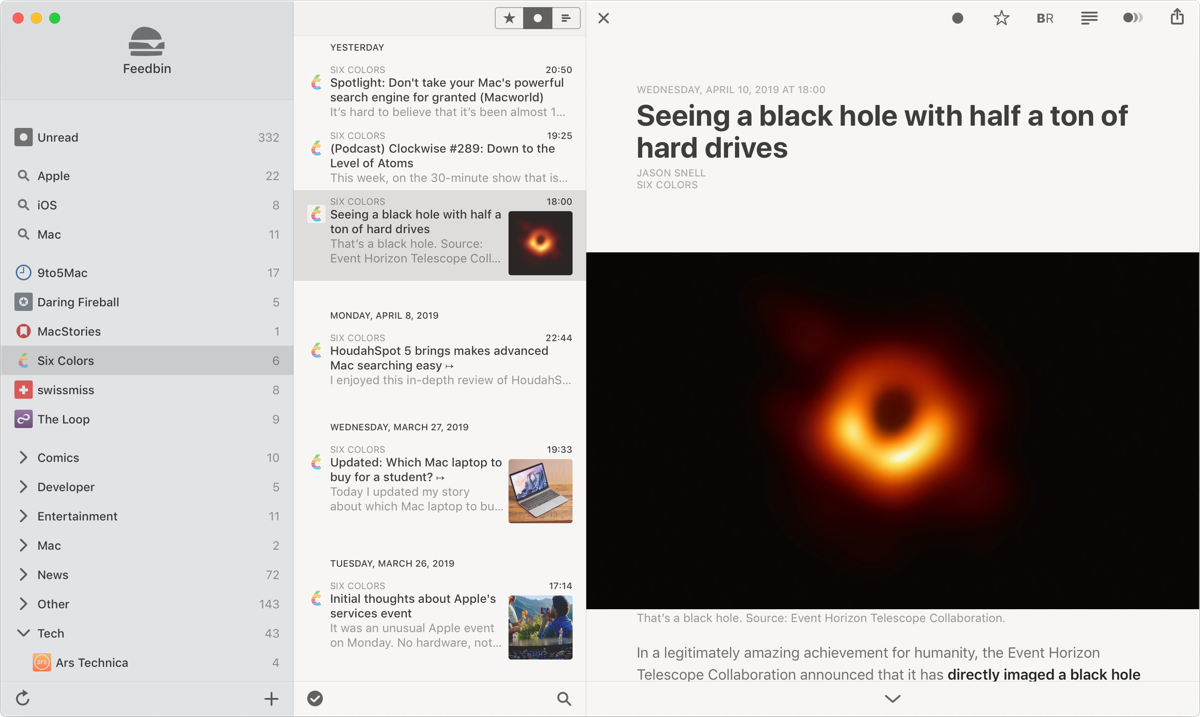
Reeder is for people who got tired of algorithms deciding what they see. Add your favorite blogs, YouTube channels, podcasts, newsletters, and everything flows into one chronological timeline.
No engagement optimization, no unread anxiety, just scroll until you're done and pick up where you left off tomorrow.
I use it because doomscrolling Twitter for news made me miserable, and RSS feeds give me back control over what I consume.
Key Features:
- Unified timeline: RSS feeds, YouTube, podcasts, Reddit, Mastodon, Bluesky all in one chronological feed
- Timeline syncing: Pick up exactly where you left off across iPhone, iPad, Mac
- No unread counts: Scroll through content like a magazine instead of inbox-zero anxiety
- Filters: Create custom timelines by keyword, media type, or source
- Save links: Use share extension to save articles to read later
- Shared feeds: Turn any tag into a public feed others can subscribe to
- iCloud sync: Subscriptions and position sync instantly, content fetched directly from sources
- Minimal podcast player: Basic playback built-in, not meant to replace dedicated apps
- Open in other apps: Tap to open videos in YouTube, podcasts in Overcast, etc.
Pros:
- Beautiful, minimal design that gets out of the way
- No ads, no tracking, no data collection
- Fast and responsive
- Developer actively maintains it (unlike Reeder 4 which went years without updates)
- Reeder Classic (old version) still available and maintained
Cons:
- Requires iOS 17+ / macOS 14+ (cuts off older devices)
- Lost Feedbin and other RSS service integrations from Reeder Classic
- No folder organization for feeds anymore
- Upward scrolling timeline feels backwards for some people
- Podcast player is basic (not replacing Overcast)
- Developer doesn't respond to support emails reliably
- Deliberately disabled app on Apple Vision Pro (strange choice)
Pricing:
$10/year subscription (roughly $1/month). Reeder Classic remains available as separate one-time purchase if you prefer the old model. 30-day free trial available.
What Is the Best Mac Productivity App?
Here's what nobody tells you about productivity apps: at some point, you have to stop optimizing your workflow and actually do the work.
I've spent years building this setup. Some of these apps have been with me so long I forget what it was like before them. Others are new enough that I'm still discovering features. But they all have one thing in common, they make me think less about how I'm working so I can focus on what I'm working on.
That's the only metric that matters.
Download what sounds useful. Try it for two-three weeks. If you're not using it without thinking about it by then, delete it and move on. Your dock doesn't need another icon. You need tools that disappear.
And if you're drowning in meetings and losing track of what was said? Don't forget to try out Char.

